Blaze AI is my favourite AI Content marketing tool right now...
In my full Blaze AI Review, I mentioned that the team behind Blaze has a vision for the it to be "a one-stop shop for you to do all your marketing in a single click: Canva, Google Docs, ChatGPT, and Shopify, rolled into a simple, powerful platform".
Well, they recently moved a step closer to that goal by launching Blaze AI Designer.
This is a new feature in Blaze that allows you to create, edit, and publish or download beautiful custom-designed images all within Blaze.
You can watch the overview video here:
This enables the creation of over 60 new types of visual content, including Instagram posts, product images for online marketplaces, profile pictures, and much more, all featuring AI-generated images and captions tailored to your brand's style.
Here are the main features...
Create Visual Brand Styles from your social media pages
Similar to what Blaze does in terms of creating a brand voice for text content, creating your brand style is as easy as logging into your social account. Blaze will analyze your social feed and automatically set up your brand style.
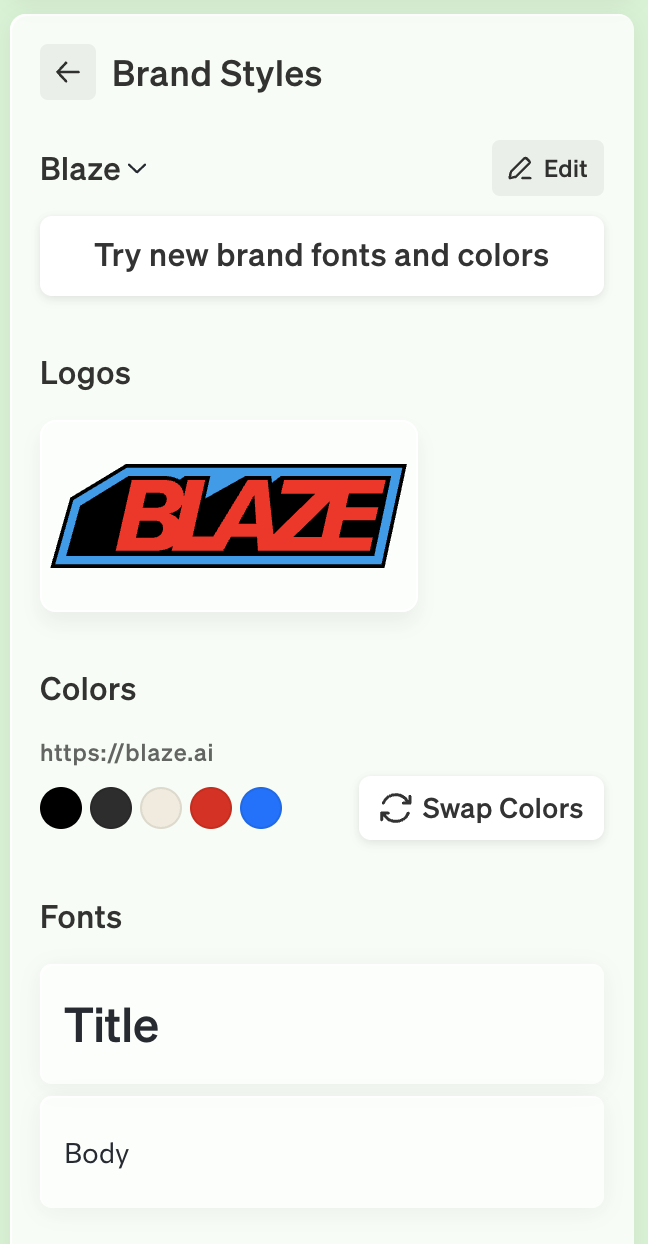
Your brand style includes your logo, colour palette and fonts.
Visual Content Wizards
Unlike most other AI content tools, which works with prompts, Blaze works with wizards... and their Designer is no different. Once you open the "Create New" menu you'll see all the visual content options. Simply select your platform, template, and topic and start designing.
The Designer has 30+ formats optimized for all the major social networks, ecommerce sites, and other websites you might need, including:
- Instagram Square Post (1080x1080)
- Instagram Story (1080x1920)
- Instagram Reel (1080x1920)
- Instagram Portrait Post (1080x1350)
- Instagram Horizontal Post (1080x566)
- TikTok Visual Post (1080x1920)
- TikTok Thumbnail (1080x1440)
- YouTube Cover (1280x720)
- YouTube Channel Art (2560x1440)
- Facebook Cover (820x312)
- Facebook Visual Post (1200x630)
- Facebook Marketplace (1080x1080)
- LinkedIn Profile Banner (1584x396)
- LinkedIn Profile Picture (400x400)
- LinkedIn Post (1200x627)
- WhatsApp Sticker (512x512)
- Pinterest Post (735x1102)
- eBay Visual Item (1600x1600)
- Poshmark Visual Item (1080x1080)
- Depop Visual Item (1280x1280)
- Mercari Visual Item (1080x1080)
- MercadoLibre Visual Item (1200x1200)
- Shopee Visual Item (1080x1080)
- Lazada Visual Item (1080x1080)
- Etsy Visual Item (2700x2025)
- Vinted Visual Item (800x600)
- Amazon Visual Item (2000x2000)
- Shopify Square Item (2048x2048)
- Shopify Landscape Item (2000x1800)
- Shopify Portrait Item (1600x2000)
- Landscape Visual Post (2016x1512)
- Portrait Visual Post (1512x2016)
- Square Visual Post (1512x1512)
- X/Twitter Visual Post (1600x900)
The wizards walk you through the steps of choosing a social media format (such as Facebook post or Instagram post), choosing a template, adding images and customizing your design.
Tons of Templates
The Designer has 500+ templates to help you get started in creating your visual designs.
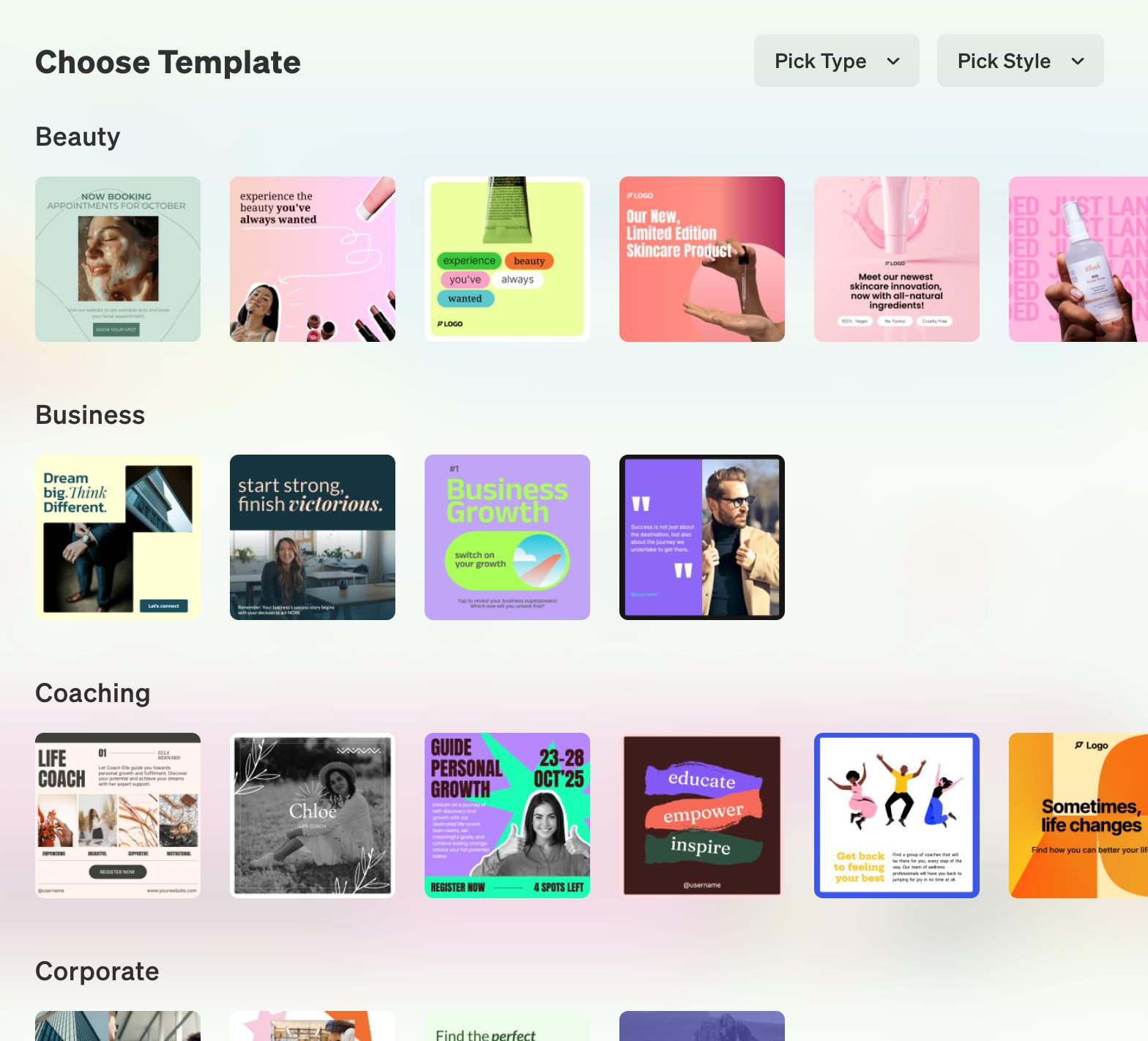
There are templates for several business categories, such as:
- Beauty
- Coaching
- Corporate
- Creators
- Ecommerce
- Fashion
- Finance
- Local Services
- Love
- Manufacturing
- Medicine
- Nonprofits
- Real Estate
- Sale
- Software
- Startups
- Travel
You can easily switch templates in the Designer using the Templates tab. Any uploaded photos that you used in the original template will transfer to the new template (when applicable).
The Visual Editor
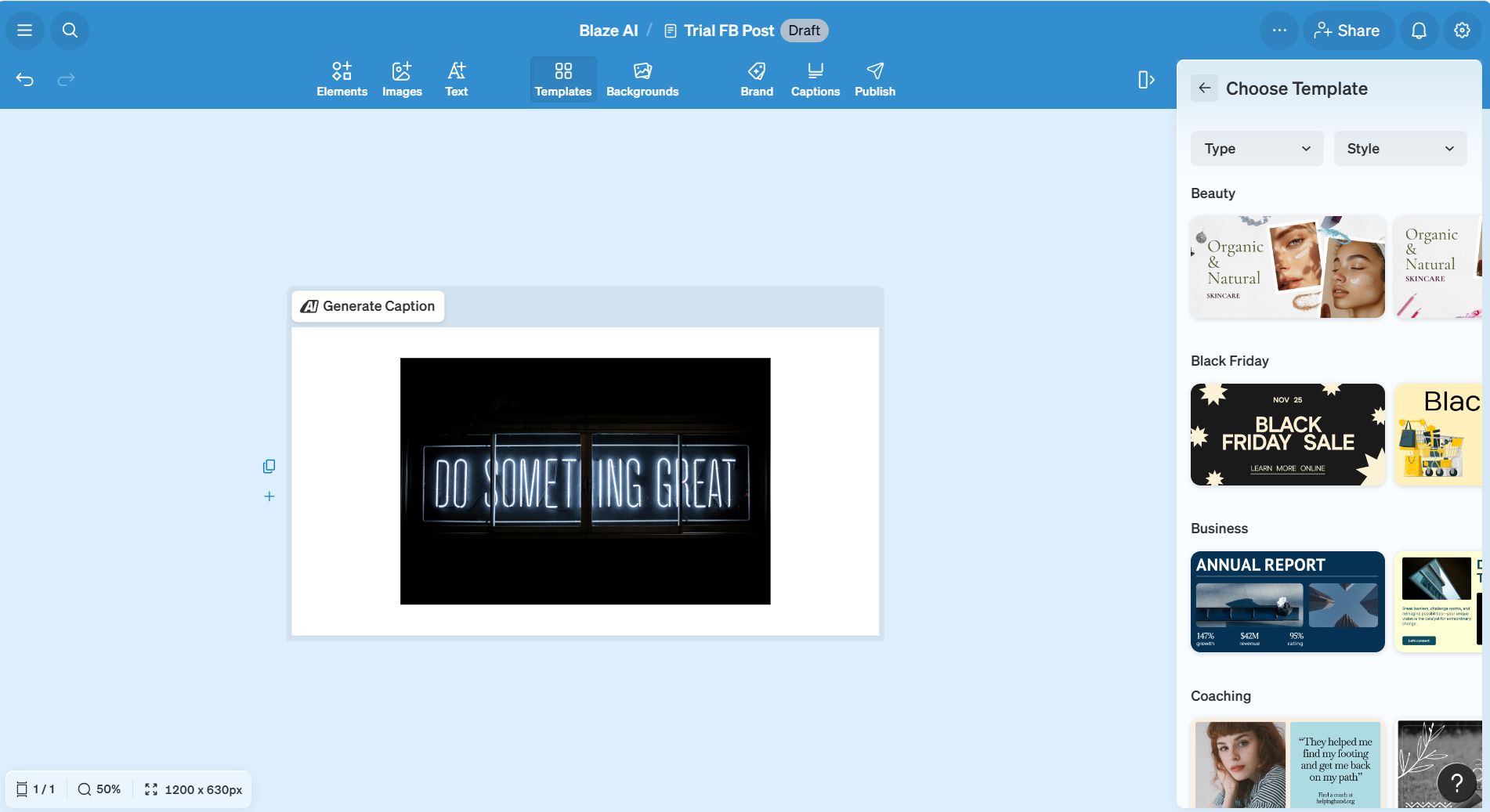
In the visual canvas of the Designer, you have a lot of editing options.
Adding and Editing Elements
Elements include shapes, frames, icons, vector graphics, illustrations, etc. You can add a visual element to the canvas by clicking on the element in the sidebar to add it to your design or drag-and-drop it onto the canvas. You can add, edit, and delete elements to your designs using the Elements tab.
You can use the Search bar at the top of the Elements tab to find all the different kinds of elements you can add to your design.
Selected elements will have a dotted line around them on the canvas as well as grabber handles on the corners to resize them. The element options panel will show, giving you several options to edit the element, including:
- Color - use colors already in the design or select new ones or gradients.
- Border - add a border and change the color, weight, and corner-rounding.
- Shadow - add a shadow and change the color, blue level, and distance.
- Opacity - change how transparent the element is.
- Alignment - align the element vertically, horizontally, to the top, bottom, or sides
- Order - change the order of how the element is layered compared to other elements, text or images.
You can also right click on an element in the canvas for quick options to copy, paste, duplicate, delete, or change the layering and alignment.
Adding and Editing Images
There are several ways to add images to your designs:
- Upload files from your computer
- Generate images with AI
- Select images from your Media Library
- Search and select royalty-free stock images

JPG, PNG, SVG and WEBP file types are supported.
Adding and Editing Text
You can add, edit, and delete text boxes in your designs using the Text tab.
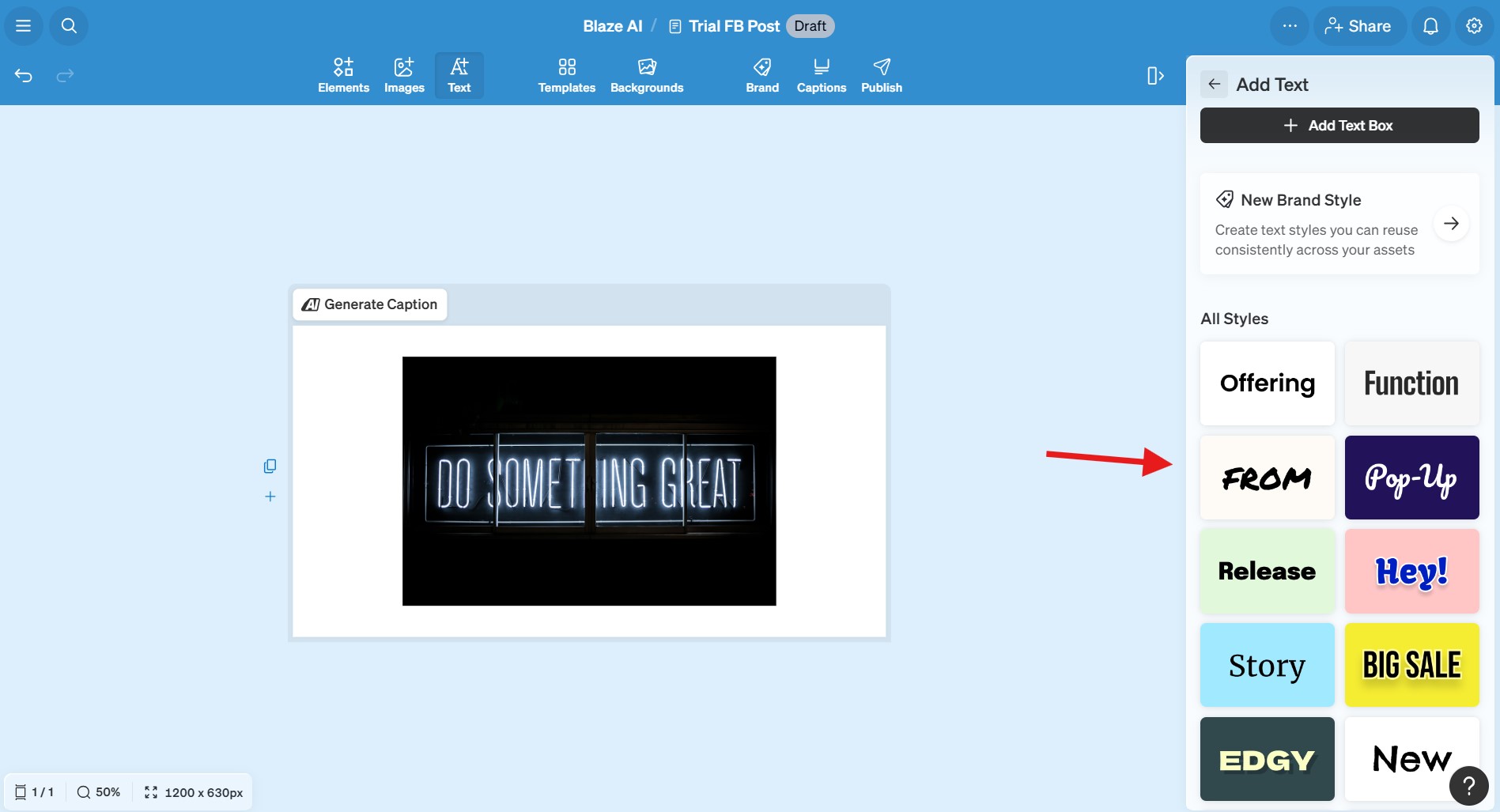
Text options include:
- Using AI to write the text for you
- Changing the font, size, weight, and alignment
- Formatting text - bold, italic, underline, strikethrough
- Changing the letter and line spacing
- Changing the color, border, shadow, and opacity
- Changing the alignment and layering
Backgrounds and Layers
Backgrounds can be added to your canvas through the Backgrounds tab.

The Layers panel is the default screen you see when landing on a design in the Designer. It shows you all the text, images, and elements that are in a design and the current ordering of them.
Captions
You can have Blaze write your caption for you with a little prompt and then select a Brand Voice so that it sounds like you. It will generate 5 options which you can choose from and edit as you like.
Publishing your Visuals
For social networks that Blaze has integrations with (Instagram, Facebook, X/Twitter, Pinterest), you will have the option to schedule or publish to those platforms directly from the Designer via the Publish tab. You can see a preview of the content before publishing or scheduling it to publish at a later date and time.
With the addition of the Designer, Blaze is closer to truly becoming a one-in-all AI content marketing platform, allow you to save time (and money, since you no longer have to purchase different platforms for different types of content).
If you aim to enhance your content marketing efforts by utilizing AI for more efficient and effective brainstorming, production, scheduling, and publishing of content for your business, then incorporating Blaze AI into your toolkit is highly advisable.
You can read my comprehensive Blaze AI review and grab my exclusive bonuses.